Last updated: 29 September 2026
Watch IPTV Ireland on your iPhone, iPad or Apple TV with a player app from the App Store. It is perfect for watching the match in the kitchen, in bed or anywhere in the house.
In this guide
Before you start
- Your login details. After you order (or request the free 30-minute trial), we send your login on WhatsApp: a username, a password and a server URL (Xtream Codes login), or an M3U playlist link for apps that need it.
- A stable connection. We recommend at least 10 Mbps for HD, 20 Mbps for Full HD and 30–40 Mbps for 4K. Check your speed with a free test such as Speedtest. A wired Ethernet connection is always the most stable.
- 5–10 minutes. Most customers are watching within 10 minutes. If you get stuck, message us and we guide you live.
How to install IPTV on iPhone and iPad
Step 1: Open the App Store
On your iPhone, iPad or Apple TV, open the App Store.
Step 2: Install an IPTV player
Search for the player we recommend — for example IPTV Smarters Player or GSE Smart IPTV — and install it.
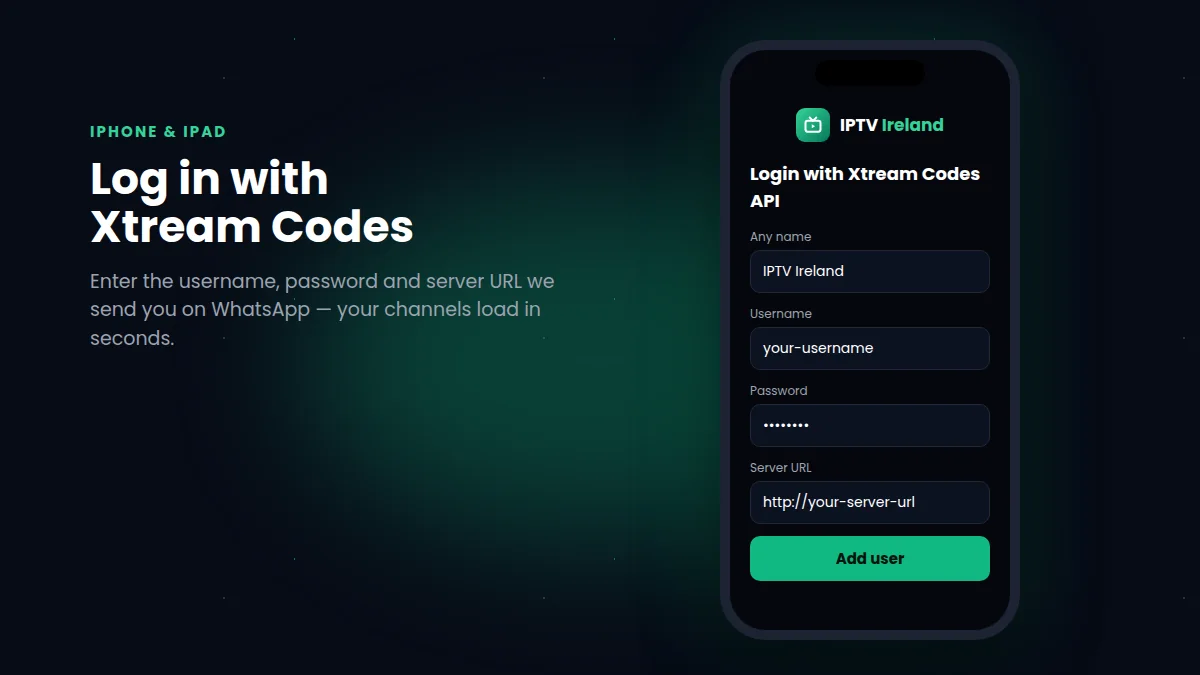
Step 3: Choose the Xtream Codes login
Open the app and select Login with Xtream Codes API (or Xtream Codes in the playlist menu).
Step 4: Enter your details
Type your username, password and server URL exactly as we sent them on WhatsApp, then tap Add user or Save.
Step 5: Start watching
Your channels, TV guide and movies & series appear. Tap a channel to watch, or use AirPlay to send the picture to your TV.
Good to know: apps in the App Store change regularly. If an app is no longer available, message us and we send you the current recommended player.
Apple TV and AirPlay
On an Apple TV 4K, install the same kind of player from the tvOS App Store and log in with your details — it gives the best picture on a big screen. From an iPhone or iPad you can also use AirPlay (Screen Mirroring) to send the picture to an Apple TV or an AirPlay-compatible Samsung or LG TV.
Tips for watching IPTV on iOS
- Use Wi-Fi at home to save your mobile data.
- Lock the screen rotation and use landscape mode for the best view.
- Close other apps if playback stutters, and keep iOS up to date.
- Remember: one plan = one screen at a time. Stop watching on your TV before starting on your phone.
See our IPTV subscription prices or request a free 30-minute trial.
Troubleshooting IPTV on iPhone and iPad
The app isn't in the App Store any more
Apps come and go on the App Store. Message us and we send you the name of the current recommended player for IPTV on iPhone and iPad.
Login error
Type your details exactly as we sent them. iOS sometimes adds a capital letter or a space automatically — check each field before you tap Add user.
Playback stops when I lock the screen
Some players pause in the background. Keep the app open while watching, or use AirPlay to send IPTV on iPhone to your TV.
With IPTV on iPhone you never miss the match, wherever you are in the house.
What You Can Watch With IPTV on iPhone