Last updated: 29 September 2026
Watching IPTV on Android is the most flexible option of all. This guide works on Android TV and Google TV televisions (Sony, Philips, TCL, Hisense and more), Android TV boxes such as the Nvidia Shield or Xiaomi Mi Box, the Chromecast with Google TV, and Android phones and tablets.
In this guide
Before you start
- Your login details. After you order (or request the free 30-minute trial), we send your login on WhatsApp: a username, a password and a server URL (Xtream Codes login), or an M3U playlist link for apps that need it.
- A stable connection. We recommend at least 10 Mbps for HD, 20 Mbps for Full HD and 30–40 Mbps for 4K. Check your speed with a free test such as Speedtest. A wired Ethernet connection is always the most stable.
- 5–10 minutes. Most customers are watching within 10 minutes. If you get stuck, message us and we guide you live.
How to install IPTV on Android in 6 steps
Step 1: Open the Google Play Store
On your Android TV, Google TV, Android box, phone or tablet, open the Google Play Store and make sure you are signed in.
Step 2: Install an IPTV player
Search for TiviMate, IPTV Smarters or XCIPTV and install the one we recommend for your device.
Step 3: Add your playlist
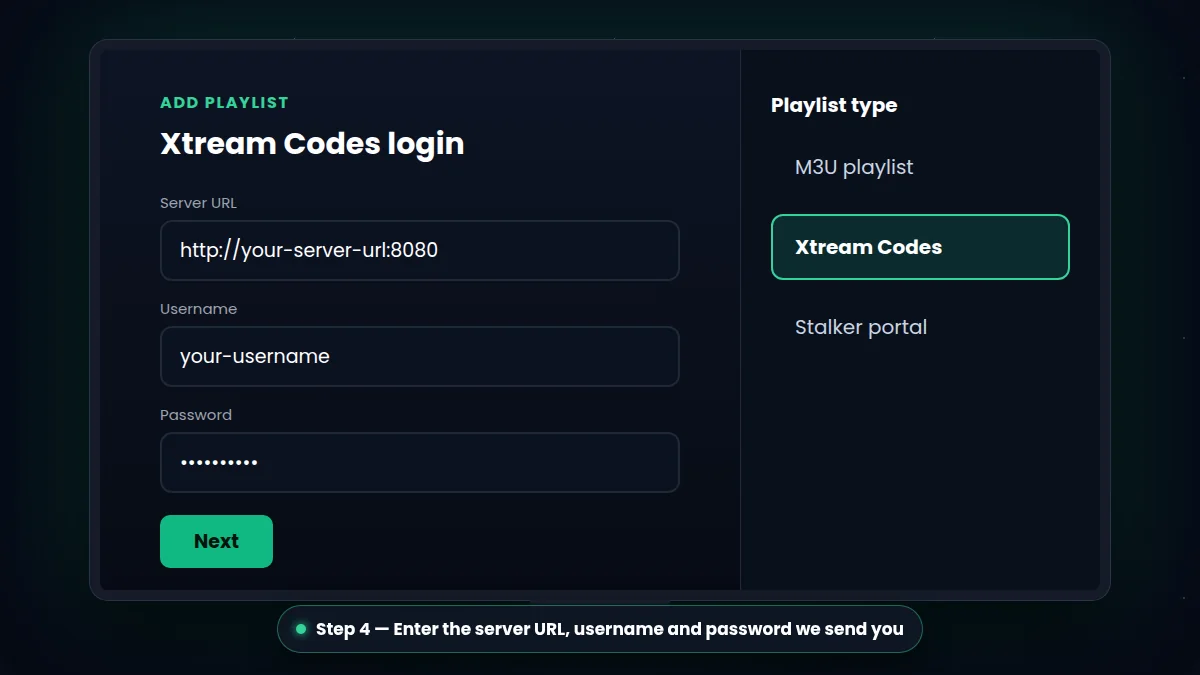
Open the app and choose Add playlist → Xtream Codes (TiviMate) or Login with Xtream Codes API (IPTV Smarters / XCIPTV).
Step 4: Enter your login details
Type your server URL, username and password exactly as we sent them on WhatsApp — they are case-sensitive.
Step 5: Wait for channels and EPG
The app downloads your channels, TV guide and movies & series library. This takes a few seconds to a minute the first time.
Step 6: Start watching
Pick a channel or a film and enjoy. On TV devices, add your favourite channels to a favourites list for faster access.
TiviMate vs IPTV Smarters vs XCIPTV
| App | Best for | Good to know |
|---|---|---|
| TiviMate | Android TV & boxes, live TV lovers | TV-style guide; some features need the app's premium upgrade |
| IPTV Smarters | Phones, tablets and TVs | Easy menus for live TV, movies and series |
| XCIPTV | Older or low-power devices | Light and fast, simple interface |
All three work with your IPTV Ireland subscription. Not sure? Ask us and we recommend the right one for your device.
Tips for Android boxes and phones
- On TV boxes, use Ethernet or 5 GHz Wi-Fi for 4K channels.
- On phones, watch on Wi-Fi at home to save mobile data — Full HD streaming uses a lot of data per hour.
- If playback stutters, try switching the player's decoder between hardware and software in the app settings.
- Still buffering? See our 10 fixes for IPTV buffering.
Choose your IPTV subscription plan or start with a free 30-minute trial.
Ask for the Best App for Your Device
Troubleshooting IPTV on Android
The playlist doesn't load
Check the server URL, username and password carefully — they are case-sensitive. Make sure you chose the Xtream Codes login type, not M3U.
The picture stutters
Switch the player's decoder between hardware and software, lower the quality to Full HD, and use Ethernet or 5 GHz Wi-Fi on TV boxes.
The TV guide is empty
Refresh the EPG in the app settings and give it a minute to download. Still empty? Message us and we check it with you.
IPTV on Android also works on your phone and tablet with the same login — perfect for watching around the house.
What You Can Watch With IPTV on Android