Last updated: 29 September 2026
The Amazon Firestick is one of the most popular ways to watch IPTV in Ireland: it is affordable, plugs straight into your TV's HDMI port and runs the best IPTV player apps smoothly. Here is how to install IPTV on Firestick step by step. This guide works for the Fire TV Stick, Fire TV Stick 4K, Fire TV Stick 4K Max and Fire TV Cube.
In this guide
Before you start
- Your login details. After you order (or request the free 30-minute trial), we send your login on WhatsApp: a username, a password and a server URL (Xtream Codes login), or an M3U playlist link for apps that need it.
- A stable connection. We recommend at least 10 Mbps for HD, 20 Mbps for Full HD and 30–40 Mbps for 4K. Check your speed with a free test such as Speedtest. A wired Ethernet connection is always the most stable.
- 5–10 minutes. Most customers are watching within 10 minutes. If you get stuck, message us and we guide you live.
How to install IPTV on Firestick in 6 steps
Step 1: Update your Firestick
Go to Settings → My Fire TV → About → Check for Updates and install any update. An up-to-date Fire OS avoids most app and playback problems.
Step 2: Install the Downloader app
From the Fire TV home screen, open Find → Search, type Downloader and install the free app from the Amazon Appstore. You will use it to download your IPTV player.
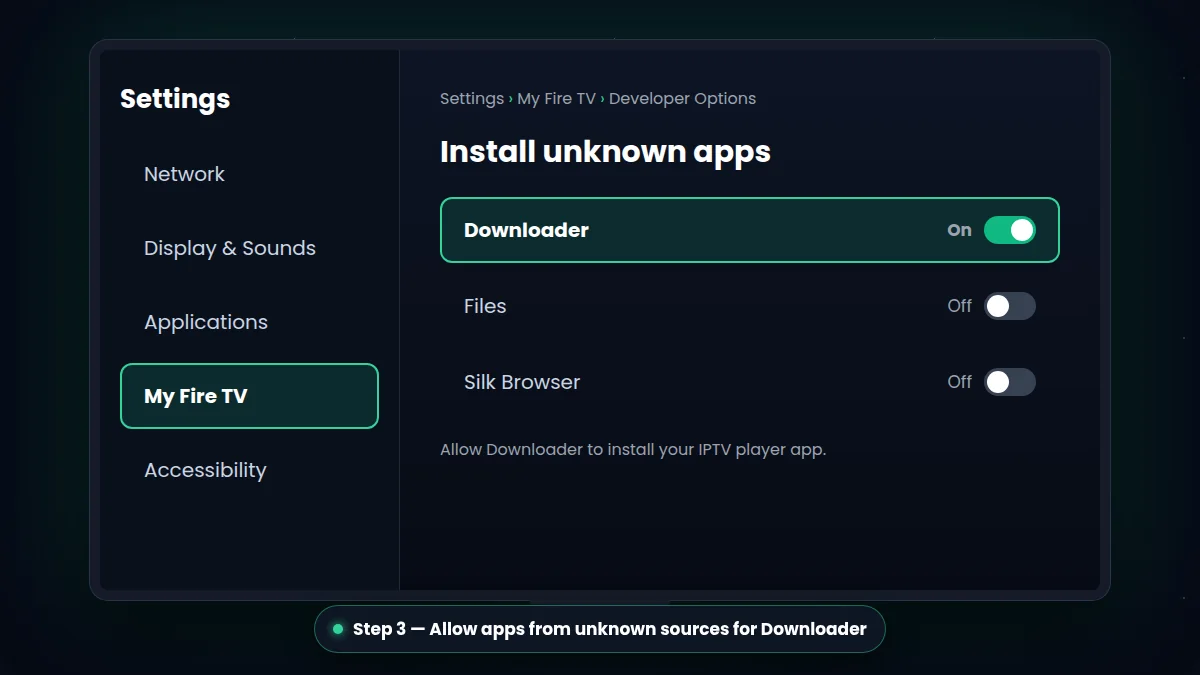
Step 3: Allow apps from unknown sources
Go to Settings → My Fire TV → Developer Options → Install Unknown Apps and switch it On for Downloader. If you don't see Developer Options, open Settings → My Fire TV → About and click your device name 7 times to unlock it.
Step 4: Download the IPTV player
Open Downloader and enter the download link or code for the player app that our support team sends you on WhatsApp. Install the app when the download finishes, then delete the installation file to save storage.
Step 5: Log in with your details
Open the player, choose Login with Xtream Codes API (or Add playlist → Xtream Codes in TiviMate), and enter your username, password and server URL exactly as we sent them.
Step 6: Load channels and the TV guide
Wait a moment while the app loads your channels, TV guide (EPG) and movies & series library. Then pick a channel and enjoy live TV in 4K, Full HD or HD.
Stuck on a step? Send us a photo of your screen on WhatsApp and we guide you in real time.
Best IPTV apps for Firestick
- TiviMate — a clean, TV-style interface with an excellent TV guide. Ideal if you mostly watch live channels.
- IPTV Smarters — simple menus for live TV, movies and series, with catch-up support.
- XCIPTV — lightweight and fast, a good choice for older Firestick models.
All three work with your IPTV Ireland login. We tell you which one suits your Firestick best when we send your details.
Tips for smooth streaming on Firestick
- Use the 5 GHz Wi-Fi band, or an Ethernet adapter for the most stable picture.
- Keep at least 1 GB of free storage: go to Settings → Applications → Manage Installed Applications and clear the cache of apps you don't use.
- Restart your Firestick once a week (Settings → My Fire TV → Restart).
- If a channel freezes, read our guide on how to fix IPTV buffering.
Ready to start? Compare our IPTV subscription plans or ask for a free 30-minute trial.
Get the Firestick Download Code on WhatsApp
Troubleshooting IPTV on Firestick
The app won't install
Check that Install unknown apps is switched on for Downloader, and that your Firestick has at least 1 GB of free storage. Restart the device and try again.
Login error
Your username, password and server URL are case-sensitive. Copy them exactly as we sent them, with no extra spaces. If the error continues, message us: we check your line straight away.
Picture freezes
Most freezing problems with IPTV on Firestick come from Wi-Fi. Use 5 GHz Wi-Fi or an Ethernet adapter, clear the app cache and restart the Firestick. Read our IPTV buffering guide for 10 more fixes.
Enjoy IPTV on Firestick with the same login on your phone or tablet too — one screen at a time on each plan.
What You Can Watch With IPTV on Firestick