Updated 29 September 2026 · 8 min read · By the IPTV Ireland support team
Nothing is more frustrating than a picture that freezes just before a goal. The good news: most IPTV buffering problems come from a handful of causes, and you can fix the majority of them yourself in a few minutes.
Our support team solves buffering questions every day. This guide shares the exact checklist we use, from the quickest checks to the more advanced settings.
In this article
Why does IPTV buffer?
Buffering happens when your device receives video more slowly than it plays it. The player empties its small reserve (the "buffer"), pauses and waits for more data. That slowdown can come from four places:
- Your home network — weak Wi-Fi, an old router or too many devices using the connection at the same time.
- Your device — little free storage, too many apps in the background or outdated software.
- The player app — an old version or settings that don't suit your device.
- The IPTV server — an overloaded server at peak time or a single faulty stream.
The first three are on your side and are the most common. The fixes below go through them in order.
10 fixes for IPTV buffering
1. Run a speed test
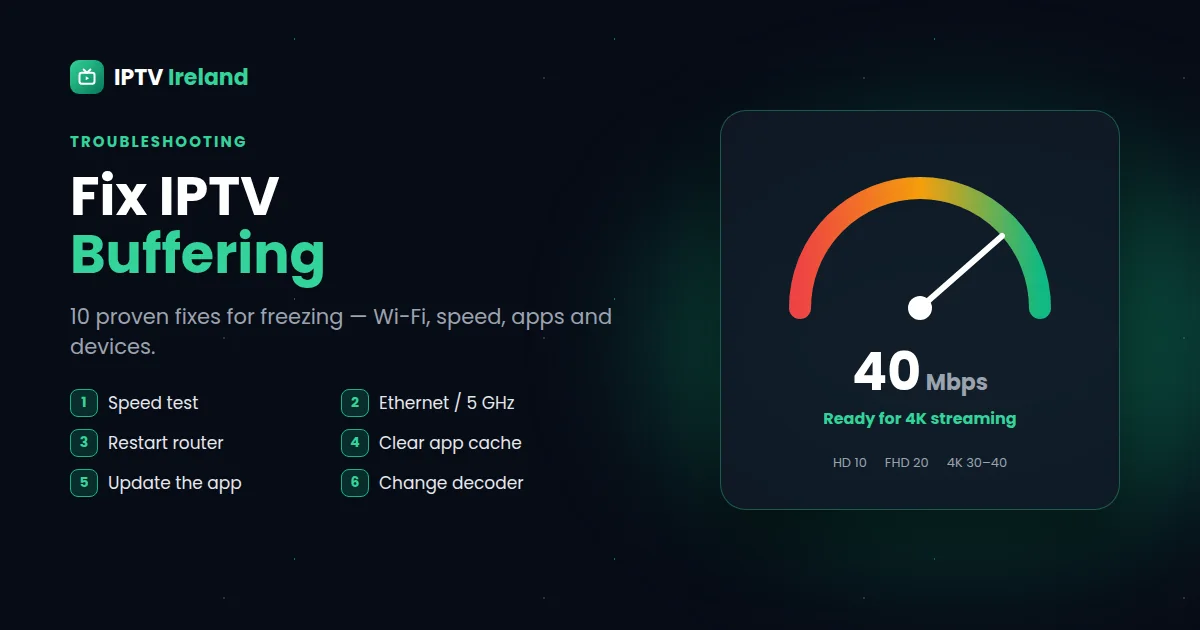
Open a speed test such as Speedtest or Fast.com on the same device you watch on (not on your phone next to it). We recommend at least 10 Mbps for HD, 20 Mbps for Full HD and 30–40 Mbps for 4K. Remember that other people streaming or downloading at home share the same connection.
2. Use Ethernet or 5 GHz Wi-Fi
Wi-Fi is the number one cause of IPTV buffering. If you can, connect your TV, box or Firestick with an Ethernet cable (Firesticks need a small Ethernet adapter). Otherwise, connect to your router's 5 GHz network and move the router closer to the TV or add a mesh point.
3. Restart your router and your device
Unplug your router and your streaming device for 30 seconds, then plug them back in. It clears memory, refreshes your connection and fixes a surprising number of freezing problems.
4. Clear the app cache
On Firestick and Android: Settings → Applications → Manage Installed Applications → your IPTV app → Clear cache. Do not choose "Clear data" unless you want to log in again.
5. Update your IPTV app and device
Old app versions can struggle with new streams. Update your player app and your device software (Fire OS, Android TV, Samsung or LG firmware, iOS).
6. Free up storage and memory
Devices with little free space slow down. Uninstall apps you don't use and keep at least 1 GB free on Firesticks and Android boxes. Close apps running in the background.
7. Change the player settings
Most players let you adjust playback. Try switching the decoder between hardware and software, change the stream format (for example TS or HLS) if your app offers it, or increase the buffer size in the settings.
8. Lower the quality at peak times
If your connection is on the limit, choose the Full HD or HD version of the channel instead of 4K during busy evenings. A stable HD picture is better than a frozen 4K one.
9. Test another channel and another device
If only one channel freezes, the problem is probably that stream — tell us which one. If every channel freezes on one device but not on another, the problem is the device or its Wi-Fi. This quick test tells you where to look.
10. Contact support with the details
Still buffering? Message us on WhatsApp with the channel name, your device, the time it happened and your speed test result. We check the stream and, if the problem is on our side, fix it or replace your line free of charge.
Fast diagnosis: if buffering stops when you use a cable instead of Wi-Fi, your Wi-Fi is the problem. If it continues on every device, check your speed test and message our support.
Quick IPTV buffering checklist
| Check | What to do |
|---|---|
| Speed | 10 Mbps HD · 20 Mbps Full HD · 30–40 Mbps 4K |
| Connection | Ethernet first, 5 GHz Wi-Fi second |
| Restart | Router and device, 30 seconds unplugged |
| App | Clear cache, update, try the other decoder |
| Device | At least 1 GB free, close background apps |
| Quality | Choose FHD or HD at peak times on slower lines |
| Still freezing? | Send channel, device, time and speed test to support |
How to prevent buffering in the future
- Keep your main TV device on Ethernet — it is the single best upgrade for IPTV.
- Restart your streaming device once a week and keep apps updated.
- Choose a device powerful enough for 4K, such as a recent Fire TV Stick 4K or a good Android TV box.
- Avoid large downloads and game updates at home during the match.
- Choose a provider with stable, anti-freeze servers and real support — see our guide on how to choose the best IPTV in Ireland.
Setting up a new device? Follow our IPTV setup guides for Firestick, Smart TV, Android, iPhone and MAG box.